Environment Context: Apple Silicon Hosts Running AMD64 Containers
- Component/Version: Docker Desktop 4.24+ / Docker Engine 24.0+, running on macOS Sonoma (14.0+) or later
- Deployment Method: Docker Compose or standalone
docker runwith AMD64 images - Host OS/Kernel: macOS Darwin (ARM64) / Docker Desktop’s virtualization layer (virtiofs / gRPC FUSE)
- Resource Limits: Default memory allocation (typically 8 GB) and CPU allocation (typically 4 cores) in Docker Desktop settings
- Relevant Config Paths:
~/Library/Group Containers/group.com.docker/settings.json(Docker Desktop settings);docker-compose.ymlper project - Observed Failure Pattern: Containers running x86_64 (AMD64) images on ARM64 (Apple Silicon) hosts exit immediately or under load with status code
139
We noticed this pattern surfacing consistently after teams migrated to Apple Silicon hardware while retaining legacy x86 container images. The error manifests across diverse workloads—MySQL 5.6, MongoDB, ChromaDB embedding generation, and .NET Core SQL Client applications—all sharing the same exit code and often producing minimal or no logs. A quick check of the container exit status via docker inspect confirmed the 139 signal termination across all affected instances.
The Symptom: Silent Container Termination on ARM64 Hosts
The failure presents as a container that starts briefly—sometimes appearing to initialize normally—then exits with code 139 within seconds. Key observations from production and development environments:
- Empty or truncated logs:
docker logs <container_id>frequently returns nothing, even when the application normally produces verbose startup output - Cross-platform inconsistency: The same image and compose configuration run successfully on Intel-based Macs (Monterey), Linux x86_64 EC2 instances, and native ARM64 environments when the image supports that architecture
- No resource exhaustion: Memory and CPU metrics show the container is not hitting configured limits before termination
- Application-specific diversity: The error occurs with MySQL 5.6.24, MongoDB, ChromaDB with SentenceTransformer embeddings, and .NET Core applications connecting to SQL Server—suggesting the issue is not application-layer logic but rather a lower-level execution environment problem
The absence of logs is particularly deceptive. Many engineers initially suspect networking misconfiguration or credential errors, only to find the container never reached the point where those errors would be emitted.
Raw Stack Trace: Signal 139 (SIGSEGV)
Exit code 139 in Linux corresponds to 128 + 11, where 11 is SIGSEGV (segmentation fault). The container is killed by the kernel due to an invalid memory access. In most cases, the application does not have an opportunity to write a crash dump or log entry before termination.
When logs are present, they often reflect the last operation before the fault, not the fault itself:
$ docker logs a9b82d01160b
Unhandled exception.
System.Reflection.TargetInvocationException: Exception has been thrown by the target of an invocation.
---> Microsoft.Data.SqlClient.SqlException (0x80131904): A network-related or instance-specific error occurred while establishing a connection to SQL Server.
The server was not found or was not accessible.
Verify that the instance name is correct and that SQL Server is configured to allow remote connections.
(provider: TCP Provider, error: 40 - Could not open a connection to SQL Server)
   at Microsoft.Data.SqlClient.SqlInternalConnection.OnError(SqlException exception, Boolean breakConnection, Action`1 wrapCloseInAction)
   at Microsoft.Data.SqlClient.TdsParser.ThrowExceptionAndWarning(TdsParserStateObject stateObj, Boolean callerHasConnectionLock, Boolean asyncClose)
   at Microsoft.Data.SqlClient.TdsParser.Connect(ServerInfo serverInfo, SqlInternalConnectionTds connHandler, Boolean ignoreSniOpenTimeout, Int64 timerExpire, SqlConnectionString connectionOptions, Boolean withFailover)
   at Microsoft.Data.SqlClient.SqlInternalConnectionTds.AttemptOneLogin(ServerInfo serverInfo, String newPassword, SecureString newSecurePassword, Boolean ignoreSniOpenTimeout, TimeoutTimer timeout, Boolean withFailover)
   at Microsoft.Data.SqlClient.SqlInternalConnectionTds.LoginNoFailover(ServerInfo serverInfo, String newPassword, SecureString newSecurePassword, Boolean redirectedUserInstance, SqlConnectionString connectionOptions, SqlC...[reference:8]
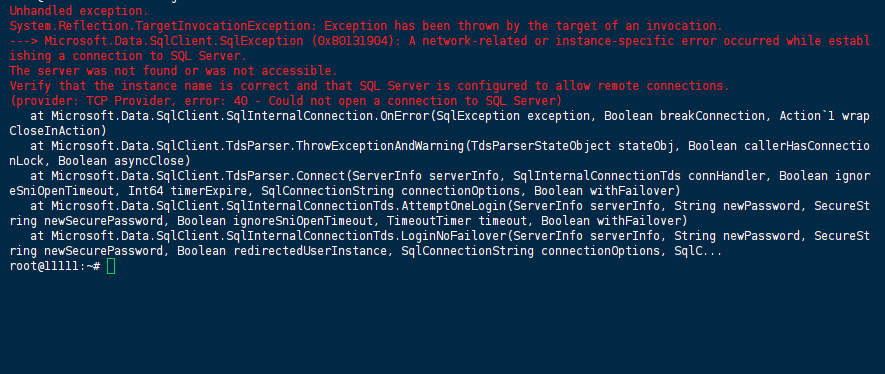
Docker inspect output confirming the signal termination:
$ docker inspect <container_id> --format='{{.State.Status}} {{.State.ExitCode}}'
exited 139
Failed Attempts: Why Standard Troubleshooting Didn’t Resolve the Issue
Most teams attempt these common fixes first—and each fails for a different reason:
The critical insight: the segmentation fault occurs deep within the emulation layer when certain x86 instructions—particularly those related to advanced vector extensions (AVX) or specific memory ordering—are executed by the Rosetta 2 translation environment.
Root Cause Analysis: AVX Instruction Emulation Faults in Rosetta 2
Docker Desktop on Apple Silicon relies on Rosetta 2 to translate x86_64 binaries to ARM64 instructions at runtime. Rosetta 2 is highly capable but does not emulate all x86_64 instruction sets, particularly:
- AVX (Advanced Vector Extensions): AVX, AVX2, and AVX-512 instructions are not fully supported in Rosetta 2’s translation layer. When an AMD64 binary compiled with AVX optimizations executes these instructions, Rosetta 2 may:
- Translate them incorrectly, leading to memory corruption
- Trigger an illegal instruction trap, resulting in
SIGILL(which may manifest asSIGSEGVin certain contexts) - Abort the process with exit code
139
- Memory ordering model: x86_64 uses a strongly-ordered memory model; ARM64 uses a weakly-ordered model. Rosetta 2 inserts memory barriers to maintain correctness, but certain multi-threaded workloads can expose translation gaps that result in invalid memory accesses
Why this affects specific workloads:
The failure is non-deterministic in some cases—the same container may crash on one startup and run briefly on another—because Rosetta 2’s translation caching and JIT compilation behavior varies based on code paths executed.
A key diagnostic indicator: if the same image runs successfully on an Intel-based Docker host (native x86_64) but crashes on Apple Silicon, the root cause is almost certainly Rosetta 2 / AVX emulation.
The Solution: Forcing Native ARM64 Images or Disabling AVX Optimizations
Two primary resolution paths exist. Choose based on your ability to control the image build process.
Path 1: Migrate to Native ARM64 Images (Recommended)
If the upstream image provides an ARM64 variant, switch to it explicitly:
# docker run
docker run --platform linux/arm64 -d mysql:8.0

# docker-compose.yml
services:
  mysql:
    image: mysql:8.0
    platform: linux/arm64
    environment:
      MYSQL_ROOT_PASSWORD: secret
For Python-based images, use ARM64 base images:
dockerfile
# Dockerfile
FROM python:3.11-slim-bookworm  # Official image supports both arm64 and amd64
# or explicitly:
FROM --platform=linux/arm64 python:3.11-slim-bookworm
Verify architecture support before switching:
docker manifest inspect <image>:<tag> | grep architecture
Path 2: Disable AVX Instructions in the Runtime Environment
When an ARM64 image is unavailable, you can force the application to use non-AVX code paths:
For PyTorch / ChromaDB / SentenceTransformer:
Set environment variables to disable AVX-optimized libraries:
# docker-compose.yml
services:
  chroma:
    image: chromadb/chroma:latest
    environment:
      - OPENBLAS_CORETYPE=ARMV8
      - MKL_DEBUG_CPU_TYPE=5
      - TORCH_CPU_ONLY=1
For MySQL 5.6 (legacy images):
MySQL 5.6 does not support ARM64 natively. Options:
- Upgrade to MySQL 8.0 (which provides ARM64 images)
- Use MariaDB as a drop-in replacement with ARM64 support
- Run the container with
--platform linux/amd64but add the following environment variable to disable certain optimizations:
docker run --platform linux/amd64 -e MYSQLD_OPTS="--skip-optimizer-optimize --skip-performance-schema" mysql:5.6.24
For .NET Core applications:
Set the DOTNET_EnableAVX environment variable to 0:
docker run -e DOTNET_EnableAVX=0 your-dotnet-app:latest
Path 3: Use Colima or Lima with Native QEMU
If Docker Desktop’s Rosetta 2 integration is problematic, consider an alternative Docker runtime:
# Install Colima
brew install colima

# Start with QEMU (software emulation, slower but more accurate)
colima start --cpu 4 --memory 8 --vm-type=qemu --arch=aarch64

# Or use the default with Rosetta disabled
colima start --cpu 4 --memory 8 --vm-type=vz --rosetta=false
Colima with --vm-type=vz --rosetta=false forces full QEMU software emulation for AMD64 containers, which, while slower, correctly emulates AVX instructions.
Verification: Confirming the Fix
After applying the solution, verify the container runs without crashing:
# Check container status - should show "Up" not "Exited"
docker ps -a | grep <container_name>

# Verify the exit code is 0 or container is running
docker inspect <container_id> --format='{{.State.Status}} {{.State.ExitCode}}'

# Monitor resource usage and ensure no abnormal spikes
docker stats <container_id> --no-stream
For Python/ChromaDB workloads, confirm the embedding generation completes:
docker logs <container_id> | tail -20
# Should show successful query results, not a segmentation fault
Performance baseline check—native ARM64 images typically show 2–3× better performance than emulated AMD64:
docker run --rm --platform linux/arm64 alpine time ls
docker run --rm --platform linux/amd64 alpine time ls
# Compare the real time values
Prevention: Architecture-Aware CI/CD and Monitoring
To prevent recurrence across the development lifecycle:
1. Architecture matrix in CI/CD
Build and test images for both linux/amd64 and linux/arm64 platforms using Docker Buildx:
docker buildx build --platform linux/amd64,linux/arm64 -t your-app:latest --push .
2. Manifest validation in deployment pipelines
Add a pre-deployment check that verifies the image architecture matches the target host:
#!/bin/bash
ARCH=$(docker inspect <image> --format='{{.Architecture}}')
HOST_ARCH=$(uname -m)
if [[ "$ARCH" == "amd64" && "$HOST_ARCH" == "arm64" ]]; then
  echo "WARNING: Running AMD64 image on ARM64 host - emulation required"
fi
3. Monitoring for exit code 139
Set up Prometheus alerts for containers exiting with code 139:
groups:
- name: container_errors
  rules:
  - alert: ContainerSegmentationFault
    expr: container_exit_code{exit_code="139"} > 0
    for: 1m
    annotations:
      summary: "Container {{ $labels.container }} crashed with SIGSEGV"
4. Image selection policy
Maintain a curated list of approved base images with confirmed ARM64 support. For databases and runtimes, prefer versions that offer multi-arch manifests:
| Component | Recommended ARM64-Compatible Version |
|---|---|
| MySQL | 8.0+ |
| MariaDB | 10.6+ |
| MongoDB | 4.4+ (ARM64 builds available) |
| Python | 3.8+ |
| .NET | 6.0+ |
| Node.js | 16+ |
5. Local development environment
Encourage developers on Apple Silicon to use --platform linux/arm64 in their docker-compose.override.yml to match production ARM64 environments, avoiding emulation surprises late in the development cycle.
References
- Official Docker Documentation: Multi-platform images and Docker Desktop for Apple Silicon
- Apple Developer Documentation: Rosetta 2 Translation Environment and Running x86_64 Code on Apple Silicon
- MySQL Official Documentation: MySQL 8.0 ARM64 Support and MariaDB ARM64 Builds
- Docker Buildx Documentation: Building Multi-Platform Images
- ChromaDB GitHub: ARM64 Compatibility Notes
(Last verified: 12 March 2026 — Docker Desktop 4.28, macOS Sonoma 14.5 / Darwin ARM64)
