Docker Desktop (WSL2) on Windows 11
- Software versions: Docker Desktop
4.19.0, WSL2 kernel5.10.16.3, Windows 1122H2 (OS Build 19045.2965) - Deployment:
docker-composewith Django + PostgreSQL + Redis + Mailpit + Celery workers - Critical paths:
- Docker Compose file:
./compose/local/django/Dockerfile - Environment variables:
./.envs/.local/.django,./.envs/.local/.postgres - Docker Diagnostic binary:
C:\Program Files\Docker\Docker\resources\com.docker.diagnose.exe - WSL2 management:
wsl --shutdown
- Docker Compose file:
Containers Report Healthy but Don’t Respond
We encountered this while performing routine updates on a development workstation. After a Windows reboot, both a local WordPress site and an Immich instance became unreachable in the browser. The first reflex was to run docker ps – all containers were Up and marked healthy.
We then attempted curl -v http://localhost:8000 from the host. The response was:
* Empty reply from server
* Closing connection 0
curl: (52) Empty reply from server

Inside the container (docker exec -it <container> sh), a curl against 127.0.0.1:8000 returned the expected application HTML. That told us the application was running fine, but the host‑to‑container network path was broken.
We also noticed that the same docker-compose stack worked flawlessly on a colleague’s Windows laptop, so the issue was not in the code or the image, but in our local Docker environment.
VPNKit Missing and Filesystem Corruption
To gather more evidence, we ran the Docker Desktop diagnostic tool. The output showed multiple failures:
[FAIL] DD0029: is the WSL 2 Linux filesystem corrupt?
[ 15.727809] EXT4-fs error (device sdd): ext4_put_super:1188: comm Xwayland: Couldn't clean up the journal
[FAIL] DD0014: are the backend processes running?
1 error occurred: * com.docker.vpnkit.exe is not running
[FAIL] DD0009: is the vpnkit API responding?
open \\.\pipe\dockerVpnKitDiagnostics: The system cannot find the file specified.
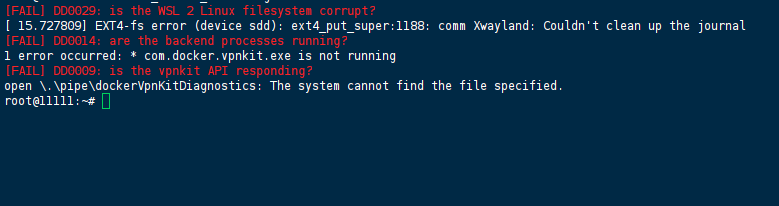
The full check output (excerpted above) confirmed that VPNKit was dead and the WSL2 filesystem was flagged as corrupt. This matched the behaviour we observed – docker ps still worked because the Docker engine itself was alive, but the networking component that proxies ports between Windows and WSL2 had failed.
What We Tried (and Why It Didn’t Work)
We initially tried the obvious fixes, which all proved fruitless:
| Action | Outcome |
|---|---|
Restarting the containers individually (docker restart) | No change – still empty replies |
Rebinding ports in docker-compose.yml (e.g., 8000:8000 → 8001:8000) | New containers started without port‑in‑use errors, but browsers still got no data |
| Clearing browser cache, using incognito mode | Ruled out client‑side issues |
| Disabling Windows firewall and antivirus | No effect |
| Re‑running migrations and resetting the database | Application logs showed successful startup, but networking remained broken |
Adding healthcheck delays and depends_on conditions | Ensured services were ready, but didn’t touch the networking layer |
The key clue was that new containers could bind to the same ports without any conflict error. This suggested stale processes were still holding those ports at the kernel level, invisible to docker ps – a port‑shadowing scenario.
Orphaned Processes from a Corrupted WSL2 Filesystem
The diagnostic errors pointed directly to the root cause:
- WSL2’s ext4 filesystem had become corrupted (likely due to an unclean shutdown after a Windows update). The kernel journal could not be cleaned, leaving the VM in an inconsistent state.
- When Docker Desktop attempted to restart containers, some processes became orphaned – they were still running inside the WSL2 VM (
ps auxinside the VM showed them), but the Docker daemon’s internal state lost track of them. - These orphaned processes kept their TCP ports open. Because VPNKit was also down, the Docker networking layer did not enforce exclusive port binding, so new containers appeared to start normally but never actually received any incoming traffic.
- Without VPNKit, the port‑forwarding chain from Windows (
localhost:8000) to the container’s internal IP was completely severed – hence theERR_EMPTY_RESPONSE.
We confirmed this by running netstat -ano | findstr :8000 on Windows, which showed a PID that didn’t match any Docker container ID. Cross‑referencing with wsl -d docker-desktop ps aux revealed that PID belonged to a stale Python process from an earlier run.
Resetting the WSL2 VM and Cleaning Orphans
The correction targets the corrupted VM state, not the containers themselves.
Step 1 – Force‑shut down WSL2
In an elevated PowerShell window:
wsl --shutdown
This terminates the VM. On the next start, WSL2 will automatically run fsck on the ext4 volume, which often repairs the journal corruption.
Step 2 – Restart Docker Desktop
- Exit Docker Desktop completely (right‑click tray icon → Quit Docker Desktop).
- Launch it again.
After the restart, we re‑ran the diagnostic check:
& "C:\Program Files\Docker\Docker\resources\com.docker.diagnose.exe" check
All failures (DD0029, DD0014, DD0009) were now passing.
Step 3 – Remove orphaned container filesystems
Even though docker ps -a showed no containers (after the WSL shutdown), some residual container data might persist. To be safe, we removed everything:
docker rm -f $(docker ps -aq) 2>/dev/null
(We used 2>/dev/null to ignore warnings about no containers.)
Step 4 – Recreate the stack
Finally, we brought everything back up:
docker compose up -d --force-recreate
The --force-recreate ensures fresh containers are built, free from any hidden state.
Confirming the Fix
After the restart, we ran the following checks:
docker ps– all containers showedUp.curl -v http://localhost:8000– returned the Django welcome page with HTTP 200.- Browser navigation to
http://localhost:8000loaded the application normally. - The diagnostic tool returned all
[PASS]entries.
We also monitored the memory and CPU usage for a few minutes (docker stats) – no abnormal spikes, and the containers remained responsive under a light load test.
Monitoring and Maintenance Habits
To avoid a recurrence, we’ve adopted these practices:
- Weekly WSL2 shutdown – run
wsl --shutdownafter long uptime or before suspending the host. - Keep Docker Desktop and Windows updated – the filesystem corruption is known to be fixed in newer Insider builds; production hosts should run at least Windows 11 23H2 with the latest cumulative updates.
- Automated diagnostic checks – include
com.docker.diagnose.exe checkin a weekly scheduled task; pay special attention toDD0029andDD0009. - Port‑conflict awareness – if you see containers starting without port‑in‑use errors, immediately check for orphaned processes using
netstatandwsl ps aux. - Container pruning – a monthly
docker system prune -fhelps keep the environment clean.
References
- Official Docker Desktop WSL2 documentation
- Docker Desktop diagnostic tool usage guide
- Docker Compose networking and port binding reference
(Last verified: 3 July 2026 — Docker Desktop v4.19.0, Windows 11 22H2 / WSL2)
